CyberWhist Learning Tools to Practice Computational Thinking
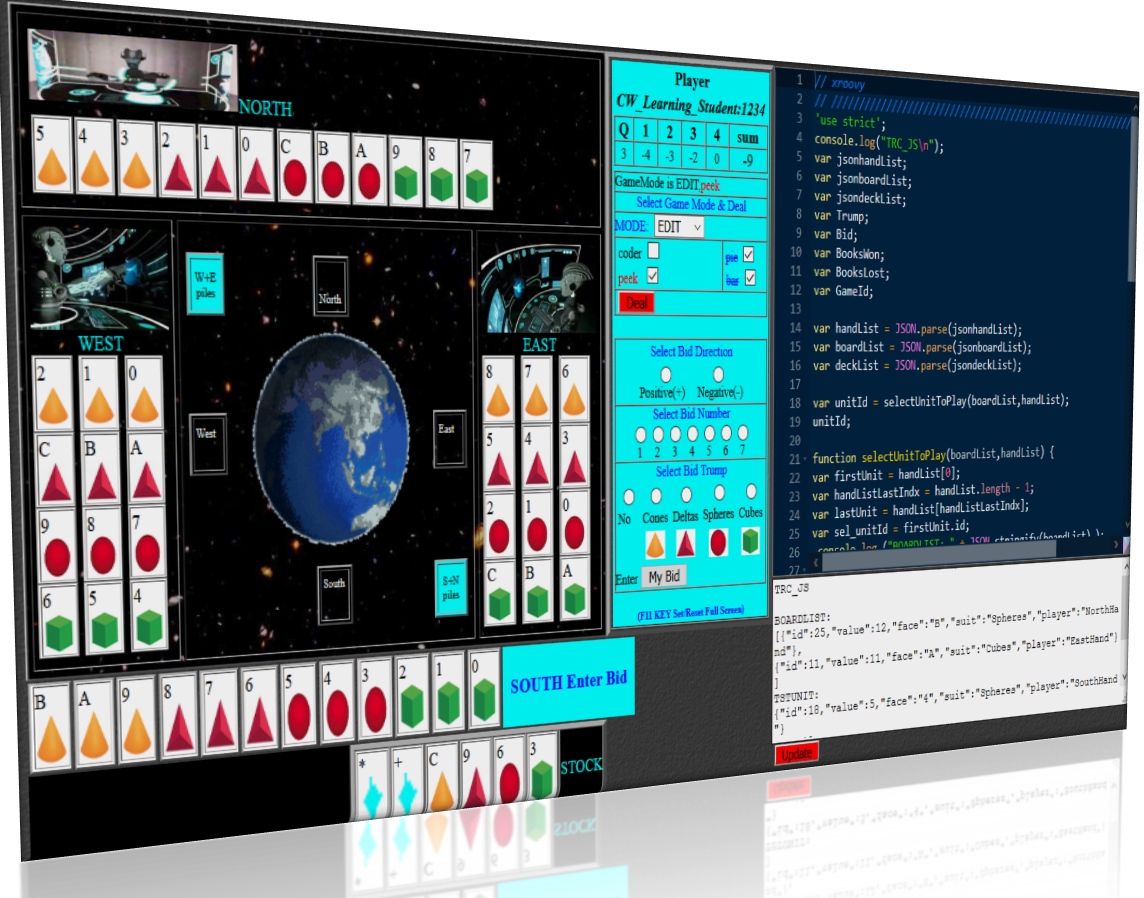
The CyberWhist application includes options to select the gameplay settings, which is accomplished manually or through the Learning Tool Interoperability Interface. Through various combinations of settings, the Learning Tool can emphasize a practice area and accommodate the learner’s capability. As examples:
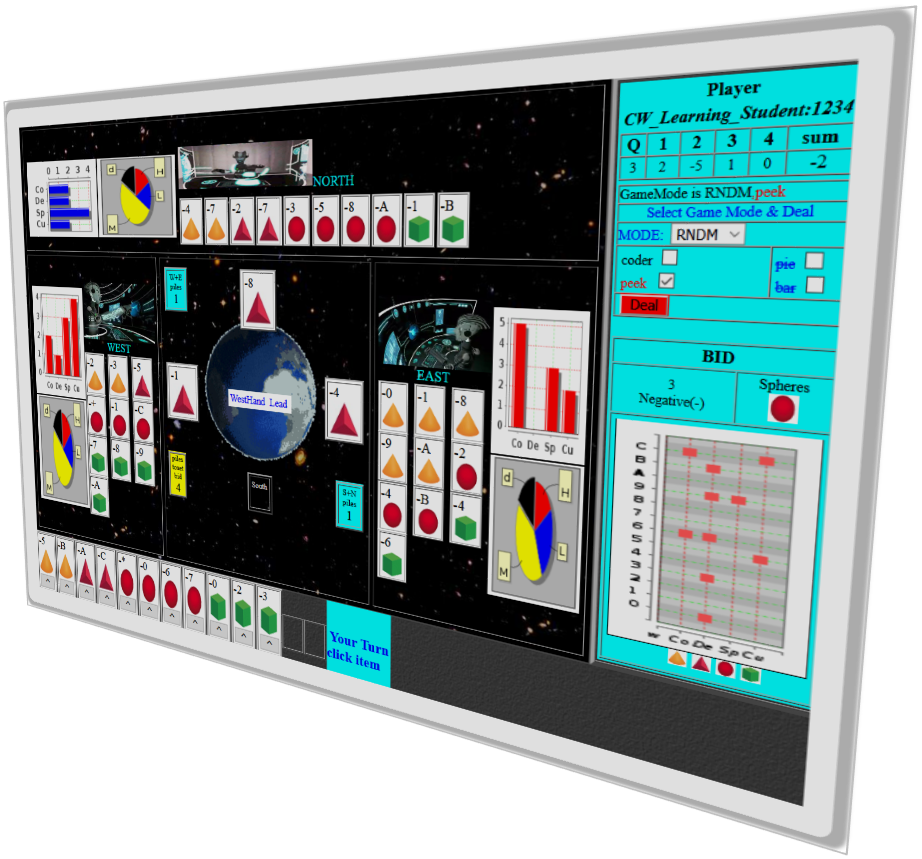
select game presentation as a “spaceview” or traditional cards,
set difficulty level through bid level,
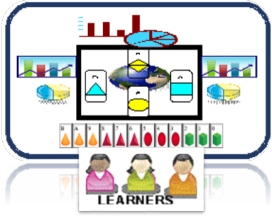
interpretation of bar graphs, pie charts,
ordering of negative and positive numbers,
use manual play to explore algorithmic thinking,
encode the algorithms to produce an automated version.
CyberWhist incorporates Project jupyter and the Tsugi Framework implementation of IMS Learning Tools Interoperability® (LTI®) to provide the Learning Tools to Practice Computational Thinking (Refs). The CyberWhist application uses LTI custom parameters to enable a LMS ( Platform) to select the gameplay settings and direct the display of relevant pre-designed Jupyter notebooks. The overall effect is to provide a more structured and directed Game-Based Learning experience.
CyberWhist incorporates Project jupyter and the Tsugi Framework implementation of IMS Learning Tools Interoperability® (LTI®) to provide the Learning Tools to Practice Computational Thinking (Refs). The CyberWhist application uses LTI custom parameters to enable a LMS ( Platform) to select the gameplay settings and direct the display of relevant pre-designed Jupyter notebooks. The overall effect is to provide a more structured and directed Game-Based Learning experience.
The Gameboard Lab
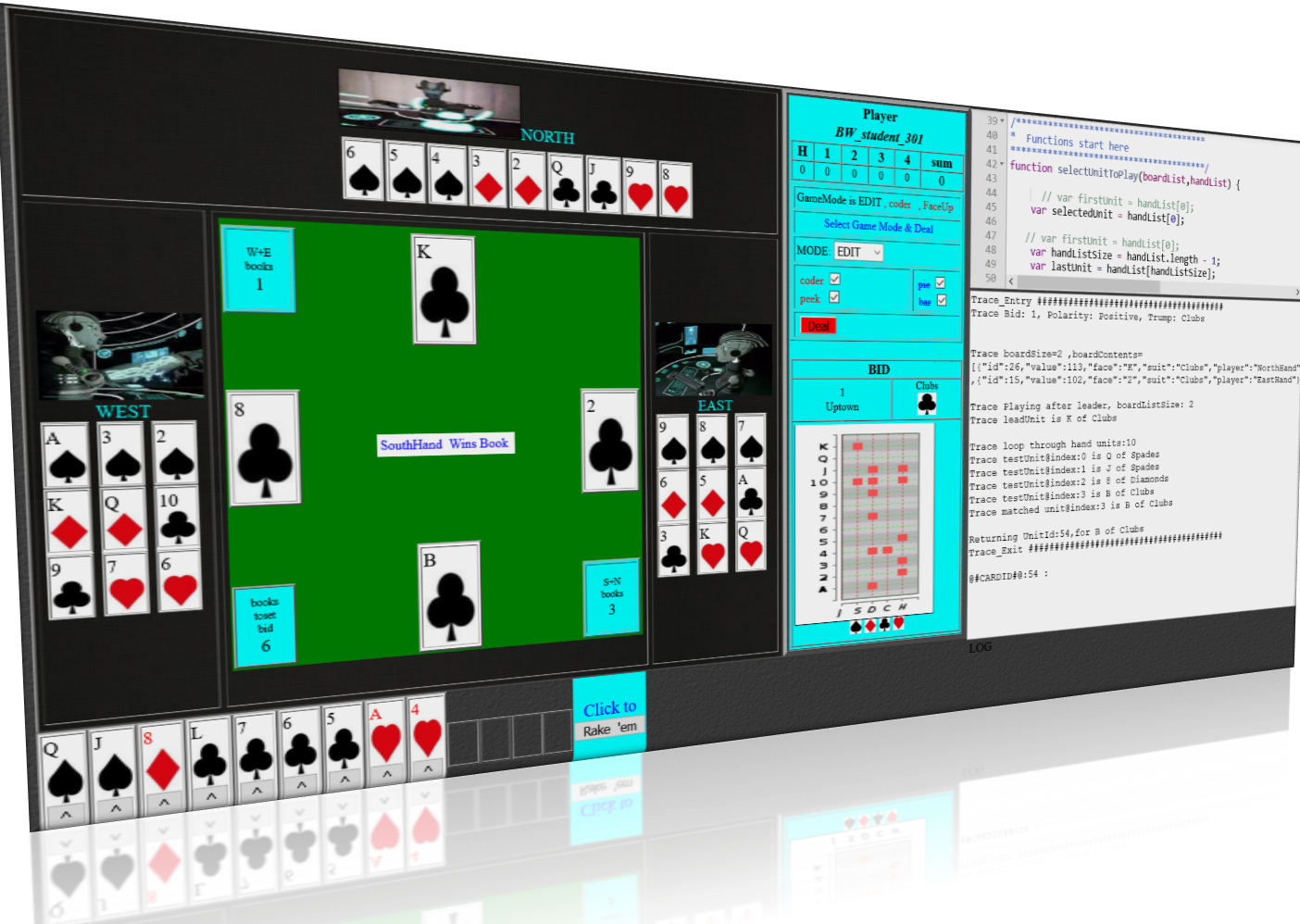
Using Preset Learner Levels: 1) STARTER, 2) LEARNER, 3)ADVANCED, the Gameboard Lab structures the Computational Thinking Practice as three (3) Play modes: 1) Manual , 2) Run Code 3) Debug. Using Preset Learner Levels: 1) STARTER, 2) LEARNER, 3)ADVANCED. The Coding Languages are: 1) javascript 2) Java/groovy, 3) solidity (Ethereum Smart Contracts). The Jupyterhub Lab-Notebook serves as and interactive script development and testing environment.
Learning Management Systems (LMS) Access
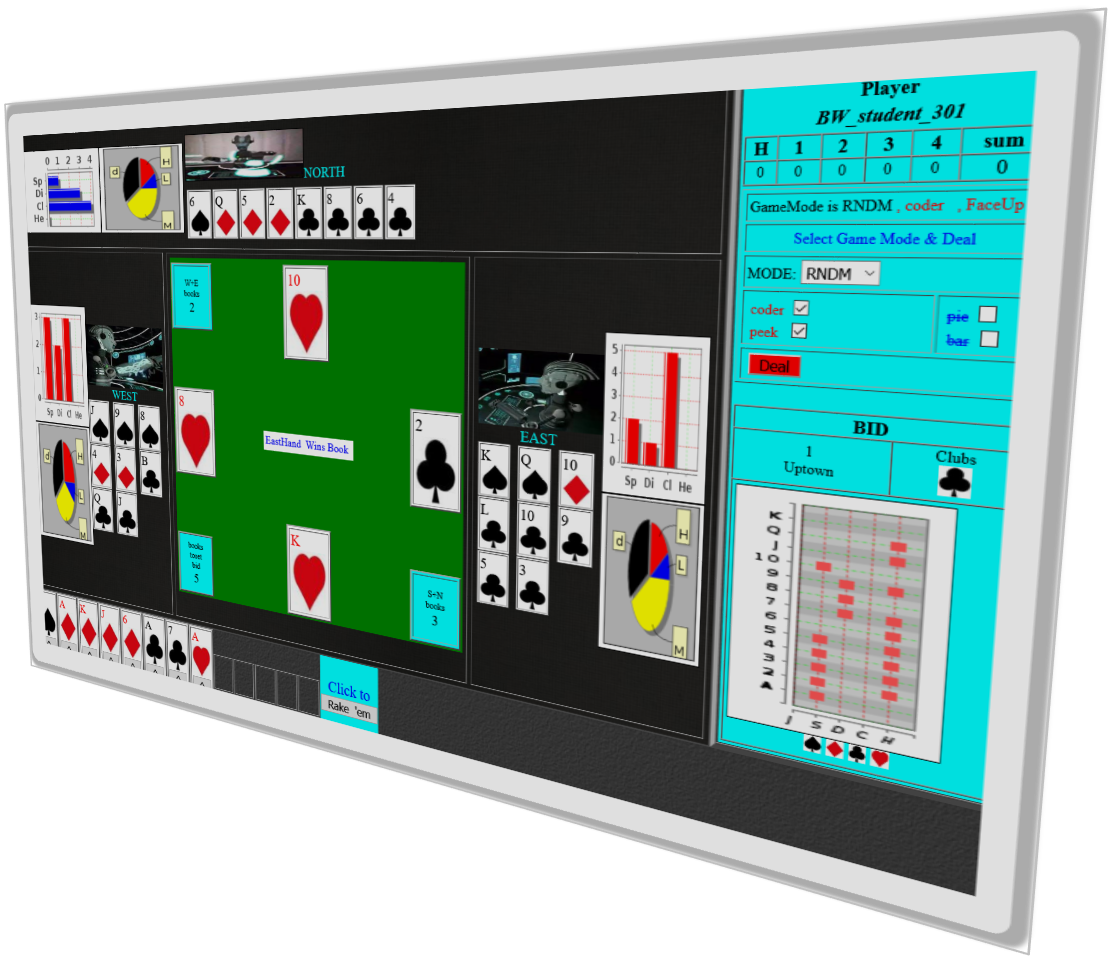
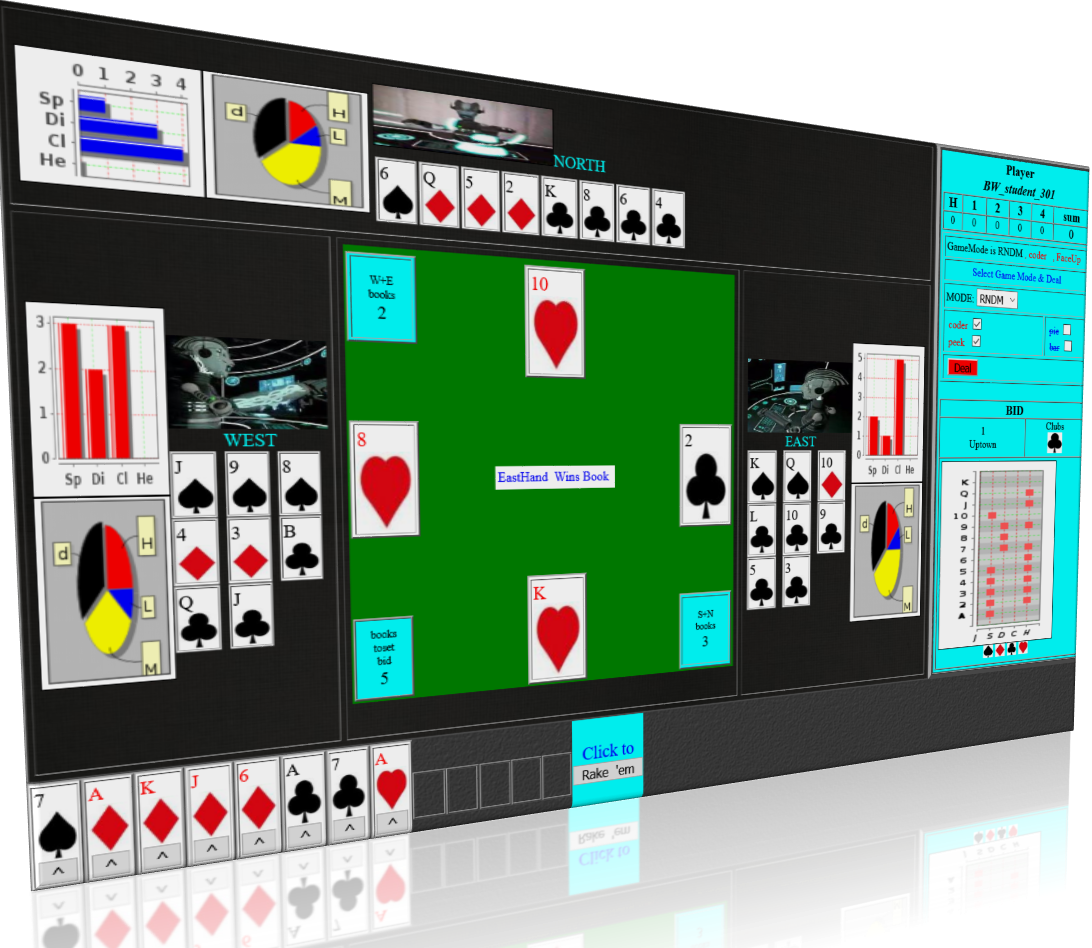
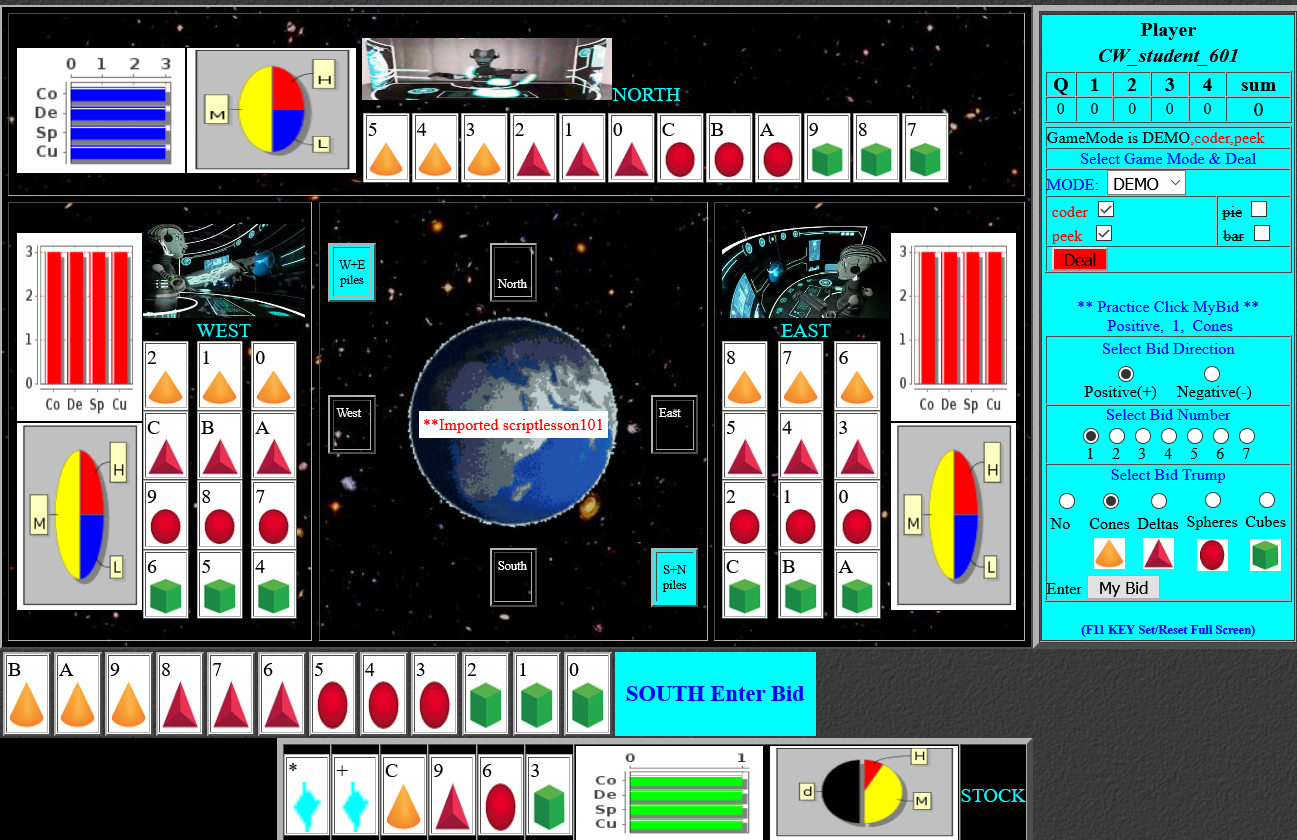
The figure depicts the CyberWhist game as launched from the LMS. The lesson creator can configure LMS LTI custom key/value parameters, which the CyberWhist application will use to configure the game options (such as Bid, coderMode). Upon launch, the Notebook, specified in the custom parameters, is retrieved from the jupyterhub notebook server and imported for use in the game.
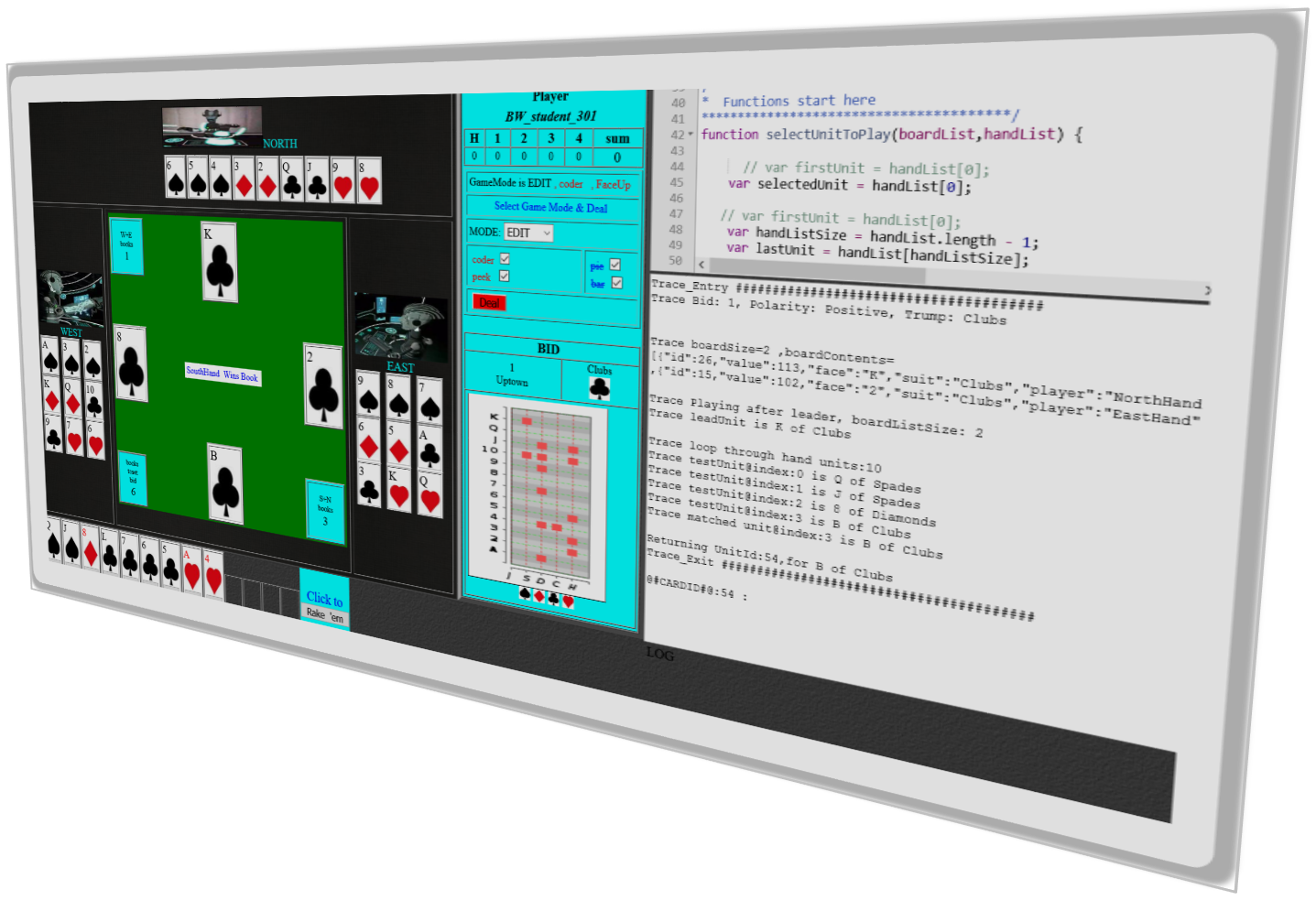
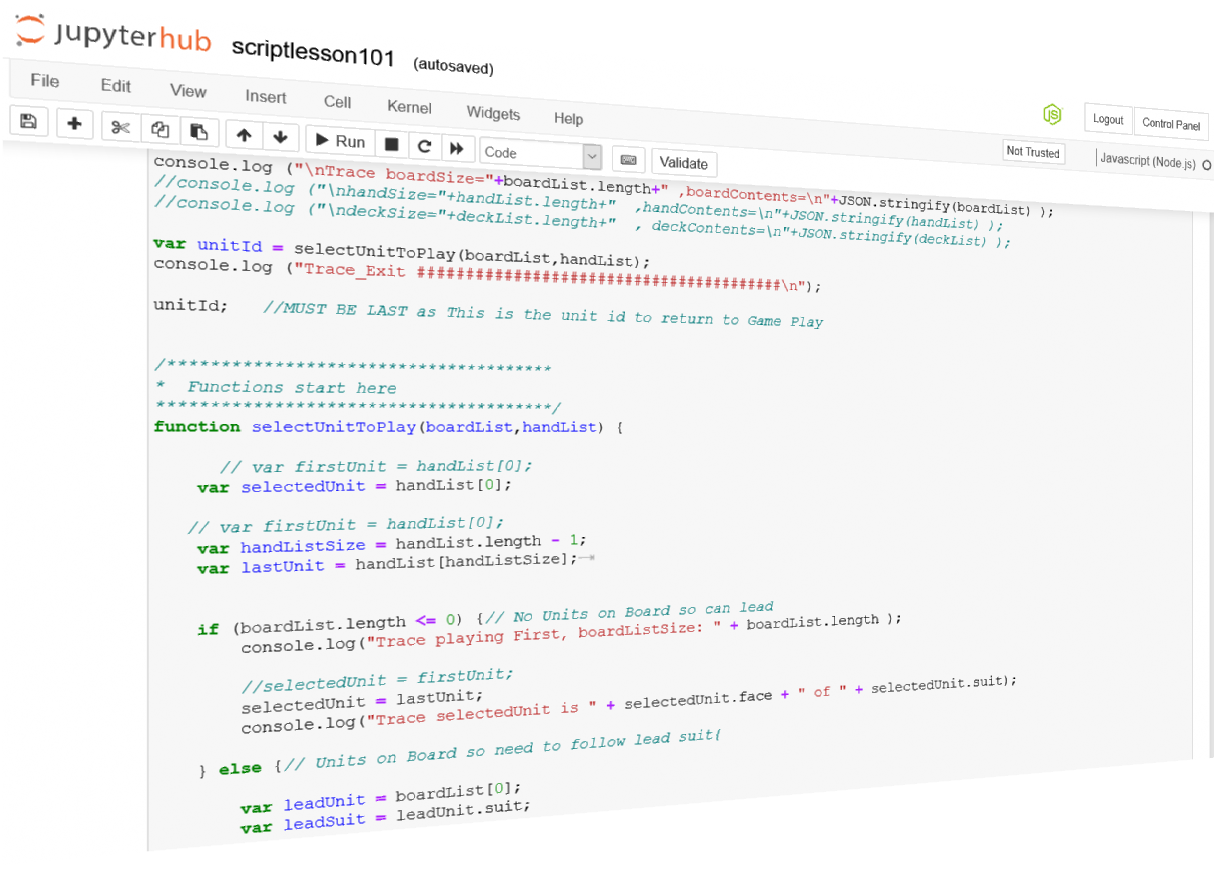
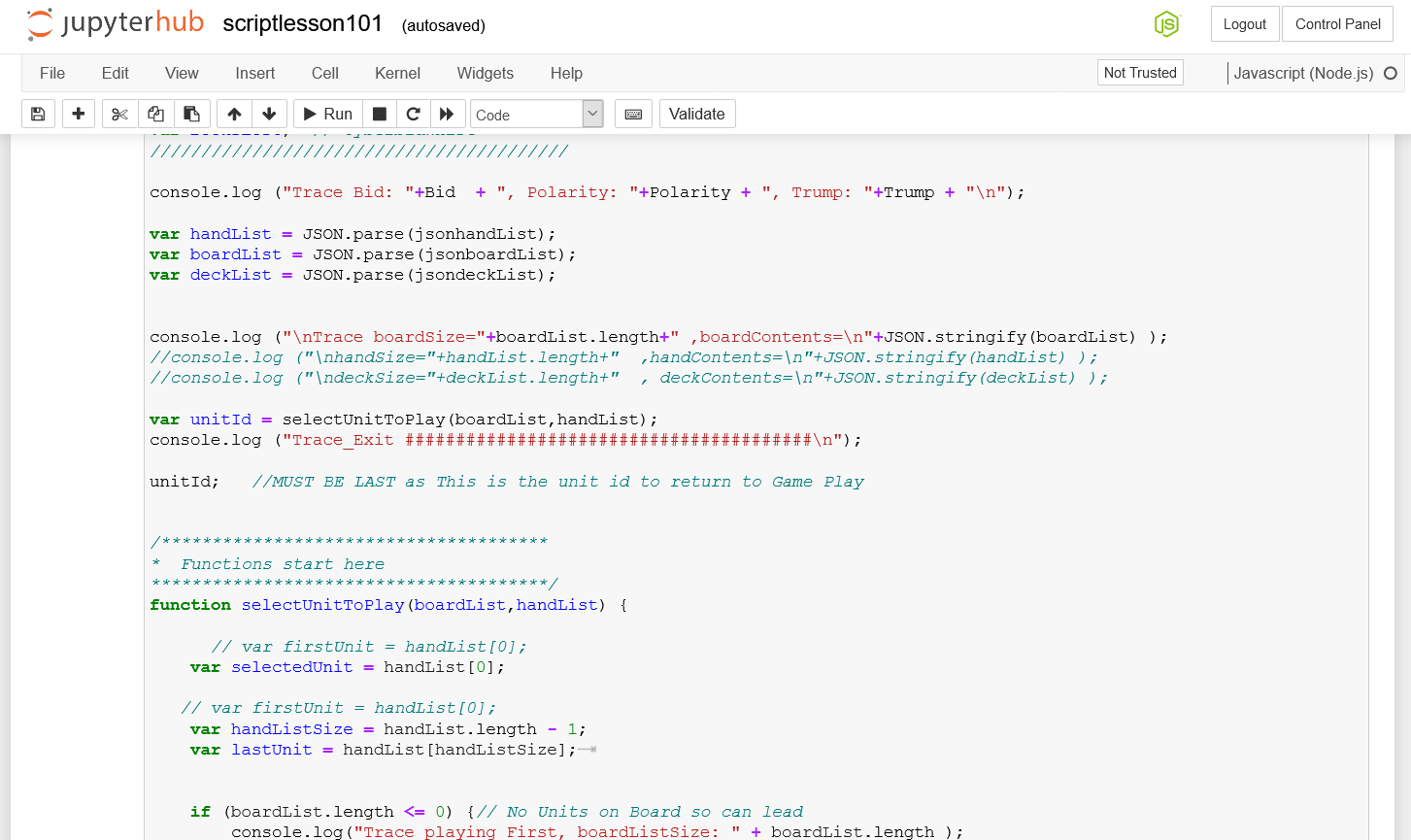
The figure depicts the jupyter notebook as launched from the LMS. The lesson creator can configure LMS LTI custom key/value parameters, which the server will use to select and display the relevant notebook (Ref. jupyterhub LTI parameters). The Notebook will contain instructions, sample code, and test data, all designed to be used by the learner to create, edit, and test the coded algorithms.
The video capture of the CyberWhist game as launched from the LMS. The lesson creator can configure LMS LTI custom key/value parameters, which the CyberWhist application will use to configure the game options (such as Bid, coderMode). Upon launch, the Notebook, specified in the custom parameters, is retrieved from the jupyterhub notebook server and imported for use in the game.
The video capture of the jupyter notebook as launched from the LMS. The lesson creator can configure LMS LTI custom key/value parameters, which the server will use to select and display the relevant notebook (Ref. jupyterhub LTI parameters). The Notebook will contain instructions, sample code, and test data, all designed to be used by the learner to create, edit, and test the coded algorithms.
The following section simulates an LMS (Platform) interaction with the CyberWhist Gameboard Lab as a Learning Tool.
ReSet: Re-starts login.
Refresh Automation: To be used when Auth Link has timed out or has been previously used.
Open CyberWhist GameBoard Lab: Launch in a new browser tab.
Note this simulator typically will be under development.
LMS LTI Simulator
References/Resources
” This handbook is for any educator teaching a topic that includes data analysis or computation in order to support learning. It is not just for educators teaching courses in engineering or science, but also data journalism, business and quantitative economics, data-based decision sciences and policy, quantitative health sciences, and digital humanities. It aims to provide an entry point, and a broad overview of Jupyter in education. Whether you are already using Jupyter to teach, you have found learning materials built on Jupyter that piqued your curiosity, or have never heard of Jupyter, the material in this open book can empower you to use this technology in your teaching.” – Teaching and Learning with Jupyter
” Jupyter Notebook is an open-source web application which learners will use to create/edit code, and narrative text. The notebook extends the console-based approach to interactive computing in a qualitatively new direction, providing a web-based application suitable for capturing the whole computation process: developing, documenting, and executing code, as well as communicating the results.” – The Jupyter Notebook — Jupyter Notebook 6.2.0 documentation
“Jupyterhub is a multi-user version of the notebook, which makes it is easy to provide and standardize the computing environment for a group of people (e.g., for a class of students)” – jupyterhub
” Tsugi is a framework that handles much of the low-level detail of building multi-tenant tool that makes use of the IMS Learning Tools Interoperability® (LTI®) . and other learning tool interoperability standards. The Tsugi Framework provides library and database code to receive and model all of the incoming LTI data in database tables and sets up a session with the important information about the LMS, user, and course.- the tsugi framework
Report
There was a problem reporting this post.
Block Member?
Please confirm you want to block this member.
You will no longer be able to:
See blocked member's posts
Mention this member in posts
Invite this member to groups
Message this member
Add this member as a connection
Please note:
This action will also remove this member from your connections and send a report to the site admin.
Please allow a few minutes for this process to complete.